
LECTEUR MP3 C200 - Mp3 player EMTEC - Free user manual and instructions
Find the device manual for free LECTEUR MP3 C200 EMTEC in PDF.


| Product type | MP3 player |
| Brand | EMTEC |
| Model | C200 (Intuix) |
| Dimensions (L × W × H) | 92 × 32 × 18 mm |
| Net weight | 29 g (without battery) |
| Internal memory | 128, 256, 512 or 1024 MB depending on model |
| Power supply | 1 AAA alkaline battery |
| Battery life | Up to 15 hours |
| PC/Mac connection | Mini-USB (USB 1.1 / 2.0 compatible) |
| Supported audio formats | MP3, WMA (without DRM), ADPCM (32 kbps) |
| Frequency response | 20 Hz – 20 kHz |
| Signal-to-noise ratio | 90 dB |
| Equalizer | 6 modes: Flat, Club, Arena, Headphone, Studio, Custom |
| Playback modes | Normal, Repeat One, Repeat All, Shuffle, Repeat Shuffle, Repeat Folder, Shuffle Folder |
| A-B function | Loop playback of a passage |
| Display | LCD screen with backlight |
| Controls | Navigation buttons, volume, hold switch |
| Storage / USB drive | Usable as a removable storage device |
| Operating systems | Windows 98/Me/2000/XP, Mac OS X (driver required for Windows 98) |
| Update | Via www.intuix.net |
| Care and cleaning | Dry, soft cloth, without liquid or aerosol |
| Precautions | Do not expose to water, shocks, magnetic fields; do not open the case |
Frequently Asked Questions - LECTEUR MP3 C200 EMTEC
User questions about LECTEUR MP3 C200 EMTEC
0 question about this device. Answer the ones you know or ask your own.
Ask a new question about this device
Download the instructions for your Mp3 player in PDF format for free! Find your manual LECTEUR MP3 C200 - EMTEC and take your electronic device back in hand. On this page are published all the documents necessary for the use of your device. LECTEUR MP3 C200 by EMTEC.
USER MANUAL LECTEUR MP3 C200 EMTEC
Introduction. EN-2
In the package EN-4
Specifications. EN-4
Knowing your portable Intuix MP3 player . EN-5
Using Intuix MP3 player . EN-6
Mass Storage PC Connection. EN-8
Operating Controls EN-9
Detailed Controls.. EN-10
Menu Settings EN-10
Main Menu Display Sub Menus EN-10
Precautions / Servicing.. EN-12
Troubleshooting. EN-12
Warnings & Precautions. EN-13
INTRODUCTION
Thank you for purchasing Intuix MP3 player!
With this MP3 player you can enjoy digital music in a more convenient way. You can also transfer songs you enjoy from your computer to your player. The MP3 player is compact in size, light in weight and highly functional. Begin to enjoy the various features of your player by following this user manual.
To familiarize yourself with your player, here are some function highlights:
128, 256, 512 or 1024 MB internal memory (depending on the model you chose)
MP3, WMA(without DRM), ADPCM playback
Supports ID3Tag
- Acts as an external drive, supports file storage and transfer
- Mini-USB connection with PC/Mac
- No PC nor Mac software required for file transfer
- Firmware upgrades available
A-B looping support
- 6 equalizers
- Sleep preset
- USB 2.0 (Full Speed)
- Support folder
Copyright Notice
You must be aware that distribution of MP3 files without the permission from the content owner is against the copyright laws. Intuix and its associating companies will not be liable against such actions.
Conformance to regulation
This product complies with the essential requirements and other relevant provisions of EC EMC Directive 89/336/EEC.
Safety information
The user manual or instruction manual for an intentional or unintentional radiator shall caution the user that changes or modifications not expressly by the party responsible for compliance could void the user's authority to operate the equipment. Modifications not authorized by the manufacturer may void users authority to operate this device.
This equipment has been tested and found to comply with limits for class B digital device, pursuant to part 15 of the FCC rules. These limits are designed to provide reasonable protection against harmful interference in a residential installation. This equipment generates, uses and can radiate radio frequency energy and, if not installed and used in accordance with the instruction, may cause harmful interference to radio communications.
However, there are no guarantees that interference will not occur in a particular installation. If this equipment does cause harmful interference to radio or television reception, which can be determined by turning the equipment off and on, the user is encouraged to try to correct the interference by one or more of the following measures:
Reorient or relocate the receiving antenna
- Increase the separation between the equipment and receiver
- Connect the equipment into an outlet on a circuit different from that to which the receiver is connected.
- Consult the dealer or an experienced radio /TV technician for help.
- Keep in mind, modifications not authorized by the manufacturer may void users authority to operate this device.
- If the product suddenly has no response or power off, it may be caused by electrostatic discharge. If this circumstance, please follow the procedures below for recovery: Switch off the unit, if the unit has no response
- Turn on the unit again
Usage & Safety
Carefully read the following safety and operating instructions. Keep this document handy for future reference.
INTRODUCTION
Do not subject the player to extreme force
Vibration during walking or exercising will not affect the Intuix MP3 player .
However, dropping the player or dropping a heavy object on the player may result in damage to the unit.
Keep the player away from water at all times
The player may be damaged if water enters it. If the player comes in contact with water, wipe it immediately with a dry cloth. If the player does not function, call Intuix Technical Support.
Keep the player away from small children
The player contains small parts that present a choking hazard.
Do not operate a motor vehicle while using the player
In many states, using the player will operating a motor vehicle is illegal. It's also dangerous.
Store the player with care
Avoid keeping the Intuix MP3 on or near high heat source(s) or in places with high humidity or a strong magnetic field.
Precautions
Do not use any object to probe the openings of the product as this may result in electric shock or fire, and will also damage the product.
Do not use Intuix MP3 when lightning is occurring.
Do not listen to headphones at loud volumes as permanent hearing damage may result. If you experience ringing in your ears, discontinue use.
Inhalation
Inhaling the fumes from the contents of an exposed battery may cause respiratory irritation.
Seek fresh air and medical attention.
Skin Contact
Direct skin contact with the contents of an exposed battery may cause skin irritation and/or chemical burns.
Remove contaminated clothing and wash the affected skin area with soap and water.
If a chemical burn or the irritation persists, seek medical attention.
Eye Contact
If the contents of an exposed battery comes into contact with the eyes, this may cause severe irritation and chemical burns.
Flush the eyes thoroughly with water immediately for at least 15 minutes, lifting the upper and lower eyelids while doing so, until no evidence of the chemical remains. Seek medical attention.
IN THE PACKAGE
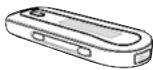
Main Unit

Stereo Earphone
Mini-USB Cable
User Manual + CD with WS 98 driver

Battery

Necklace
SPECIFICATIONS
Size (HxWxD)
Net Weight
Internal Flash Memory
Power Supply
PC/Mac Interface
Digital Music Format
Digital Voice Format
Signal to Noise Ratio
Frequency Range
Battery Life
Equalizer
Play Mode
92× 32× 18mm
29g (without battery)
128, 256, 512 or 1024 MB, depending on the model you chose
1x AAA alkaline battery
Mini-USB
/Playback MP3,WMA(without DRM),all bit rates including VBR
ADPCM (32kbps)
90dB
20Hz - 20kHz
up to 15 hours
Flat, Club, Arena, Monitor, Studio, User
Normal, Repeat One, Repeat All, Random, Repeat Random, Repeat Folder, Random Folder
All specifications are subject to change without notice.
KNOWING YOUR PORTABLE INTUIX MP3 PLAYER
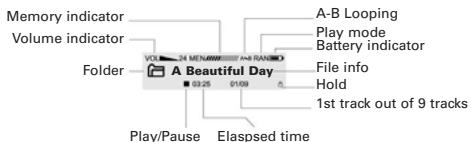
Memory Indicator
Shows how much memory is used. The filled block represents the remaining memory.
For a 256MB player, one block represents about 42MB of memory;
for a 128Mb player, one block represents about 21MB.
A-B Looping
This special feature enables you learn a language, repeat your favorite section of the song.
Battery level indicator
Shows how much longer the battery can be used, level decreases as battery is used.
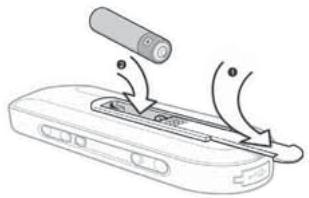
Inserting battery
- Open the battery door according to this direction.
- Put the battery into the compartment.
Pay attention to the polarity.
USING INTUIX-MP3 PLAYER
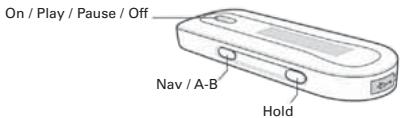
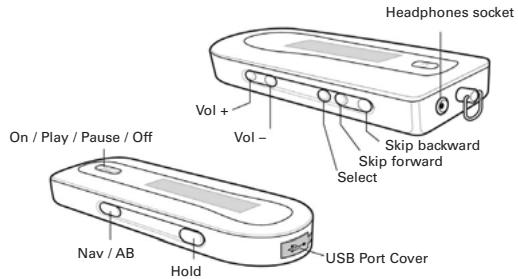
ON/PLAY/PAUSE/OFF
To turn ON Intuix MP3, press the ON/PLAY/PAUSE/OFF button.
- To start playback, press the ON/PLAY/PAUSE/OFF button.
- To pause playback, press the ON/PLAY/PAUSE/OFF button.
To turn OFF Intuix MP3, hold down the ON/PLAY/PAUSE/OFF button for a few seconds.
NAV/A-B
- When in the Main Menu, press the NAV button to return to the Playback Display.
- Press the NAV button to go up a menu or directory level.
- When the Playback Display is displayed on Intuiq MP3 screen and playback is active, pressing the NAV button sets the start point A (if point A is not set), and pressing NAV again sets point B (if point B is not set). If the Repeat A-B is activated, pressing the NAV button will reset playback to normal mode.
HOLD
- Place in ON position to disable all other buttons.
- Place in OFF position to enable all other buttons.
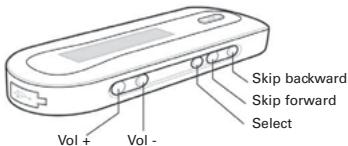
SKIP BACKWARD
When the Playback Display is displayed on Intuix MP3 screen:
- When playback is active, press the SKIP BACKWARD button once to restart playback at the beginning of the current track.
- When playback is active, quickly press the SKIP BACKWARD button twice to start playback at the beginning of previous track.
When the Main Menu or a sub-menu is displayed on Intuix MP3 screen:
- Press to highlight the previous menu option. (A box will appear around the highlighted menu option).
USING INTUIX-MP3 PLAYER
SKIP FORWARD
When the Playback Display is displayed on Intuix MP3 screen:
- Press to skip to the beginning of the next track.
- If playback is active, press and hold down to skip forward in the current track.
When the Main Menu or a sub-menu is displayed on Intuix MP3 screen:
- Press to highlight the next menu option. (A box will appear around the highlighted menu option).
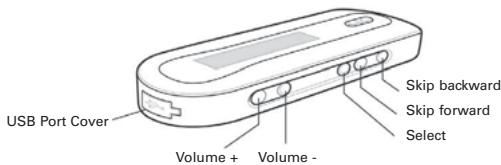
VOL +
- Press to increase the volume.
VOL -
- Press to decrease the volume.
SELECT
- Press the SELECT button to select the highlighted menu option or to open a highlighted folder.
- When the Playback Display is displayed on IntuiX MP3 screen, press and hold the SELECT button to enter the Main Menu Display.
NOTE :
To navigate up and down in IntuiX MP3 track/folder lists, use the SKIP FORWARD and SKIP BACKWARD buttons. To open a folder, highlight the folder and press SELECT.
To go up a folder level, press NAV.
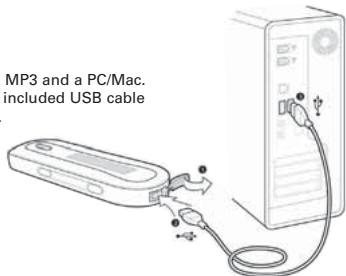
USB Cable
- Used for transferring tracks and data between your INTUIX MP3 and a PC/Mac. Open the USB port cover and connect the small end of the included USB cable to your MP3 Player. Connect the other end to your PC/Mac.
MASS STORAGE PC CONNECTION
This is a mass storage device. No driver installation is required except Windows 98.
The driver is not required for Windows 2000/XP or Mac. For Window 98 users, please download the driver from www.intuix.net. Locate the downloaded driver file (setup.exe) on your hard drive and double click the driver file (setup.exe). Follow onscreen prompts to complete the driver installation process.
(For Window 98 users, you can use the Window 98 driver CD if you retailer bundled it in the package)
Mac OS X does not require driver installation.
Multiple Language Support
When the player is in stop mode, pressing the Vol+ and Vol- buttons will change the song name display language. By using these buttons will convert the song titles through a series of different languages listed below:
- Western European Language
- Korean (Hangeul)
- Japanese (Hiragana, Katakana and Kanzi)
- Chinese Traditional
- Chinese Simplified
Transfer files from PC or Mac to player:
- Switch on the player and connect it securely to the PC/Mac with the USB cable.
- Double click on "My Computer" on the desktop of windows, there will be an additional drive created.
- If the player is connected to your PC/Mac, you will see "USB Connected" on the player's screen.
To download music files to your MP3 player, simply drag the files from the Windows File Explorer and drop them to the newly created drive.
You can also upload files from the player to the PC/Mac by doing the reverse.
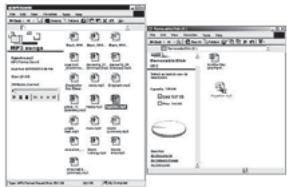
CAUTION: ONLY UNPLUG THE USB CABLE WHEN ALL DOWNLOAD PROCEDURES ARE COMPLETED.
Do not unplug the USB cable when the LCD is still displaying "USB writing" as doing so may corrupt the files stored in the player and you will need to re-format the MP3 player. If the player encounters abnormal interruption during recording such as battery removal, you may also need to re-format it.
MASS STORAGE PC CONNECTION
Add on functions:
- The MP3 player can also be used as an external drive for storage of non-music files.
- The MP3 player is compatible with Music Match. You can directly rip your audio CDs to WMA or MP3 format using Music Match software and directly download to the player.
How to format the player?
The purpose of re-formattting the player is to try to restore the player to normal operation.
This is for when the player is not able to function properly or in cases where you player is unable to power on. Keep in mind, that the content of the player will be removed once being formatted.
-
Connect the player to the PC.
-
Right click the additional drive and click Format.*
- Click "Yes" to confirm.
*FAT 16 or FAT only, NOT FAT 32).
Firmware Upgrader
You should check your vendor's website for new firmware upgrades, these developments provide add-on functions and language support options. Upgrades are announced on the web site and users can then download the software from the download section at http://www.intuix.net.
OPERATING CONTROLS
Operating in Music Mode
The following tables show all key responses under different operations in music mode.
Music Playing Mode
| Key | Key Action | Browsing | Playing |
| Short | Play current track | Stop/Pause current track | |
| Long | Power off | Power off | |
| Short | Move to next track | Play next track | |
| Long | Move to next track continuously | Fast Forward | |
| Short | Move to previous track | Play previous track | |
| Long | Move to previous track continuously | Fast Rewind | |
| Menu | Enter Menu Mode | Enter Menu Mode | |
| Vol + | Change Language | Increase the volume | |
| Vol - | Change Language | Decrease the volume | |
| -> Hold | On/Off | All Keys are locked | All Keys are locked |
DETAILED CONTROLS
Playing Music or Voice files
1. Play and stop
Press the button to play tracks. To stop the track, press the button again.
2. Selecting tracks
a. When the MP3 player is playing a file, press the button towards the direction quickly to play the next track and press the button towards the direction quickly to play the previous track.
b. When the player is stopped, press the button with or allows you to browse through the tracks stored in memory.
3. Moving within track
Press the button with or for longer than 1 second will fast forward or rewind during a track.
4. A-B looping
While playing music or voice, you can set a section to repeat continuously. Press the NAV button to mark the point where you want the section to start (Point A). Then press NAV again to mark where you want the section to end (Point B). The selected section will then repeat continuously.
5. Deleting track and voice files
Choose delete from MENU. Use or to select track or voice file you wish to delete and press to delete. To exit, press SELECT button.
MENUS SETTINGS
To change the settings, use the or button to select each particular option. Press the button to enter into the sub-menu and use the or button to choose the desired settings. Press the button to confirm your choice. To change the setting in different modes you need to press the MENU button.
The following table shows all key responses for menu setting in different modes:
Key
MENU
OTHERS
Key action
Enter/Exit menu
Move right / left
Enter into sub-menu / Confirm
No response
MAIN MENU DISPLAY SUB MENUS
PLAYMODE MENU
From the PLAYMODE menu, the following options can be selected by highlighting the desired option and pressing the button. To exit, press SELECT button.
NORMAL
When the NORMAL mode is selected, the current track will play through once, the next track will play through once, and so on.
REPEAT ONE
When the REPEAT ONE mode is selected, the current track will play repeatedly.
MAIN MENU DISPLAY SUB MENUS
REPEAT FOLDER
When the REPEAT FOLDER mode is selected, tracks within the current folder will be played repeatedly.
REPEAT ALL
When the REPEAT ALL mode is selected, all tracks will be played repeatedly.
RANDOM FOLDER
When the RANDOM FOLDER mode is selected, tracks within the current folder will be played in a shuffled order.
RANDOMALL
When the RANDOM ALL mode is selected, all tracks will be played in a shuffled order.
RANDOM REPEAT
When the RANDOM REPEAT mode is selected, all tracks will be played randomly and playback will continue repeating randomly until stopped.
EQ MENU
From the EQ menu, the following sound equalization options can be selected by highlighting the desired option and pressing the button. To exit, press SELECT button.
FLAT / CLUB / ARENA / MONITOR / STUDIO / USER
These options allow the user to select any of the six (FLAT, CLUB, ARENA, MONITOR, STUDIO, USER) preset DSP equalization filters. Each preset provides a different blend of bass and treble. Selecting NORMAL turns off equalization filters.
USER
Press button in the EQ to enter into USER, a MBASS and TREBLE setting between a level 1 and 4 can be selected.
DELETE MENU
From the DELETE menu, files can be deleted by pressing the SELECT button.
SETTINGSMENU
From the SETTINGS menu, the following options can be selected by highlighting the desired option and pressing the SELECT button.
SLEEP
From the SLEEP menu, sleep timer settings of 10, 30 or 60 minutes or OFF can be selected.
RESUME
This option allows the user to set INTUIX MP3 so that playback resumes at the beginning of the track where it ended when the player was last powered off.
SCROLL
This option allows the user to set the scroll speed (OFF, Slow, Medium, Fast) that occurs when the SKIP FORWARD or SKIP BACKWARD button is held down.
CONTRAST
From the CONTRAST menu, display contrast settings between a level of 1 and 10 can be selected.
DEFAULT
This option allows the user to reset the player to its factory default setting.
VERSION
This option displays the firmware version.
IDLE
This option allows the user to set the idle timer setting of 3, 5, 15, & 30 minutes or OFF before powering down the unit.
PRECAUTIONS/SERVICING
CLEANING THE PLAYER
Do not use liquid or aerosol cleaners. Use a damp cloth for cleaning.
USING & REPLACING BATTERIES
Do not dispose the battery(s) in fire, recharge, put in backwards, or mix with used or other battery types as they may explode or leak and cause personal injury.
Do not attempt to recharge standard non-rechargeable batteries. Recharging nonrechargeable batteries (such as normal alkaline batteries) may lead to an explosion or leakage and can cause personal injury.
Do not immerse batteries in water
Do not repair or disassemble the batteries.
Do not drop the batteries or subject them to extreme force.
Do not short-circuit the batteries, as this may result in skin burns.
If the product will go unused for longer than a few weeks, remove the batteries.
Insert the batteries according to the polarity markings on the product.
Keep the batteries in a cool and dry place, away from heat, moisture and metal objects when not in use.
Handle leaking batteries with rubber gloves. Avoid direct contact with skin or eyes. If this happens, wash thoroughly with water and seek medical attention.
Dispos of used batteries as required by local ordinances or regulations.
Keep the batteries out of reach of young children.
SERVICING
Do not attempt to service any part of the product yourself. Servicing should only be done by qualified service personnel.
TROUBLESHOOTING
If you encounter difficulties which cannot be resolved, please read this entire section.
If the player does not turn on when the ON button is pressed:
The battery may be inserted incorrectly. Be sure to match the battery's polarity markings (+ and -) to the polarity markings on the player.
The battery may be depleted. Use a new battery.
The HOLD function might be ON.
If tracks are skipping or the sound quality is poor:
There may be strong magnetic fields near the unit. Move the unit away from the TV or other source of a magnetic field.
The battery may be nearly depleted. Use a new battery.
Verify that the sound quality of the original file is okay.
If INTUIX MP3 will not start playback:
The HOLD function may be activated. Put the HOLD switch in its OFF position.
If INTUIX MP3 is not recognized by Windows:
Check the USB connection between your unit and the computer.
Verify that the PC's or Mac'sUSB drivers are properly installed.
Verify that the player is powered ON.
If INTUIX MP3 freezes:
Remove INTUIX MP3 battery, reinsert the battery and press ON/PLAY/PAUSE/OFF to power ON INTUIX MP3.
Normal operation should be possible.
WARNING & PRECAUTIONS
Usage & Safety
Carefully read the following safety and operating instructions. Keep this document handy for future reference.
Do not subject the player to extreme force
Vibration during walking or exercising will not affect the INTUIX MP3 player. However, dropping the player or dropping a heavy object on the player may result in damage to the unit.
Keep the player away from water at all times
The player may be damaged if water enters it. If the player comes in contact with water, wipe it immediately with a dry cloth. If the player does not function, call Technical Support.
Keep the player away from small children
The player contains small parts that present a choking hazard.
Do not operate a motor vehicle while using the player
In many states, using the player will operating a motor vehicle is illegal. It's also dangerous.
Store the player with care
Avoid keeping the INTUIX MP3 on or near high heat source(s) or in places with high humidity or a strong magnetic field.
Other Precautions
Do not use any object to probe the openings of the product as this may result in electric shock or fire, and will also damage the product.
Do not use INTUIX MP3 when lightning is occurring.
Do not listen to headphones at loud volumes as permanent hearing damage may result.
If you experience ringing in your ears, discontinue use.
C200 LECTEUR MP3
Flat, Club, Arena, Monitor, Studio, User
Normal,
(and other countries)
www.intuix.net

Service Hot line 0820 825 333*
- numero indigo 0,15 €TTC/min
www.intuix.net

Service Hotline 0900-510 255 00*

- INTRODUCTION
- THANK YOU FOR PURCHASING INTUIX MP3 PLAYER
- TO FAMILIARIZE YOURSELF WITH YOUR PLAYER, HERE ARE SOME FUNCTION HIGHLIGHTS
- COPYRIGHT NOTICE
- CONFORMANCE TO REGULATION
- SAFETY INFORMATION
- USAGE & SAFETY
- DO NOT SUBJECT THE PLAYER TO EXTREME FORCE
- KEEP THE PLAYER AWAY FROM WATER AT ALL TIMES
- KEEP THE PLAYER AWAY FROM SMALL CHILDREN
- DO NOT OPERATE A MOTOR VEHICLE WHILE USING THE PLAYER
- STORE THE PLAYER WITH CARE
- PRECAUTIONS
- INHALATION
- SKIN CONTACT
- EYE CONTACT
- IN THE PACKAGE
- SPECIFICATIONS
- KNOWING YOUR PORTABLE INTUIX MP3 PLAYER
- MEMORY INDICATOR
- A-B LOOPING
- BATTERY LEVEL INDICATOR
- INSERTING BATTERY
- USING INTUIX-MP3 PLAYER
- ON/PLAY/PAUSE/OFF
- NAV/A-B
- HOLD
- SKIP BACKWARD
- WHEN THE PLAYBACK DISPLAY IS DISPLAYED ON INTUIX MP3 SCREEN
- WHEN THE MAIN MENU OR A SUB-MENU IS DISPLAYED ON INTUIX MP3 SCREEN
- SKIP FORWARD
- VOL
- SELECT
- NOTE
- USB CABLE
- MASS STORAGE PC CONNECTION
- MULTIPLE LANGUAGE SUPPORT
- TRANSFER FILES FROM PC OR MAC TO PLAYER
- CAUTION: ONLY UNPLUG THE USB CABLE WHEN ALL DOWNLOAD PROCEDURES ARE COMPLETED
- ADD ON FUNCTIONS
- HOW TO FORMAT THE PLAYER
- FIRMWARE UPGRADER
- OPERATING CONTROLS
- OPERATING IN MUSIC MODE
- DETAILED CONTROLS
- PLAYING MUSIC OR VOICE FILES
- PLAY AND STOP
- SELECTING TRACKS
- MOVING WITHIN TRACK
- DELETING TRACK AND VOICE FILES
- MENUS SETTINGS
- KEY
- KEY ACTION
- MAIN MENU DISPLAY SUB MENUS
- PLAYMODE MENU
- NORMAL
- REPEAT ONE
- PRECAUTIONS/SERVICING
- CLEANING THE PLAYER
- USING & REPLACING BATTERIES
- SERVICING
- TROUBLESHOOTING
- IF THE PLAYER DOES NOT TURN ON WHEN THE ON BUTTON IS PRESSED
- IF TRACKS ARE SKIPPING OR THE SOUND QUALITY IS POOR
- IF INTUIX MP3 WILL NOT START PLAYBACK
- IF INTUIX MP3 IS NOT RECOGNIZED BY WINDOWS
- IF INTUIX MP3 FREEZES
- WARNING & PRECAUTIONS
- OTHER PRECAUTIONS
- C200 LECTEUR MP3
Brand : EMTEC
Model : LECTEUR MP3 C200
Category : Mp3 player